
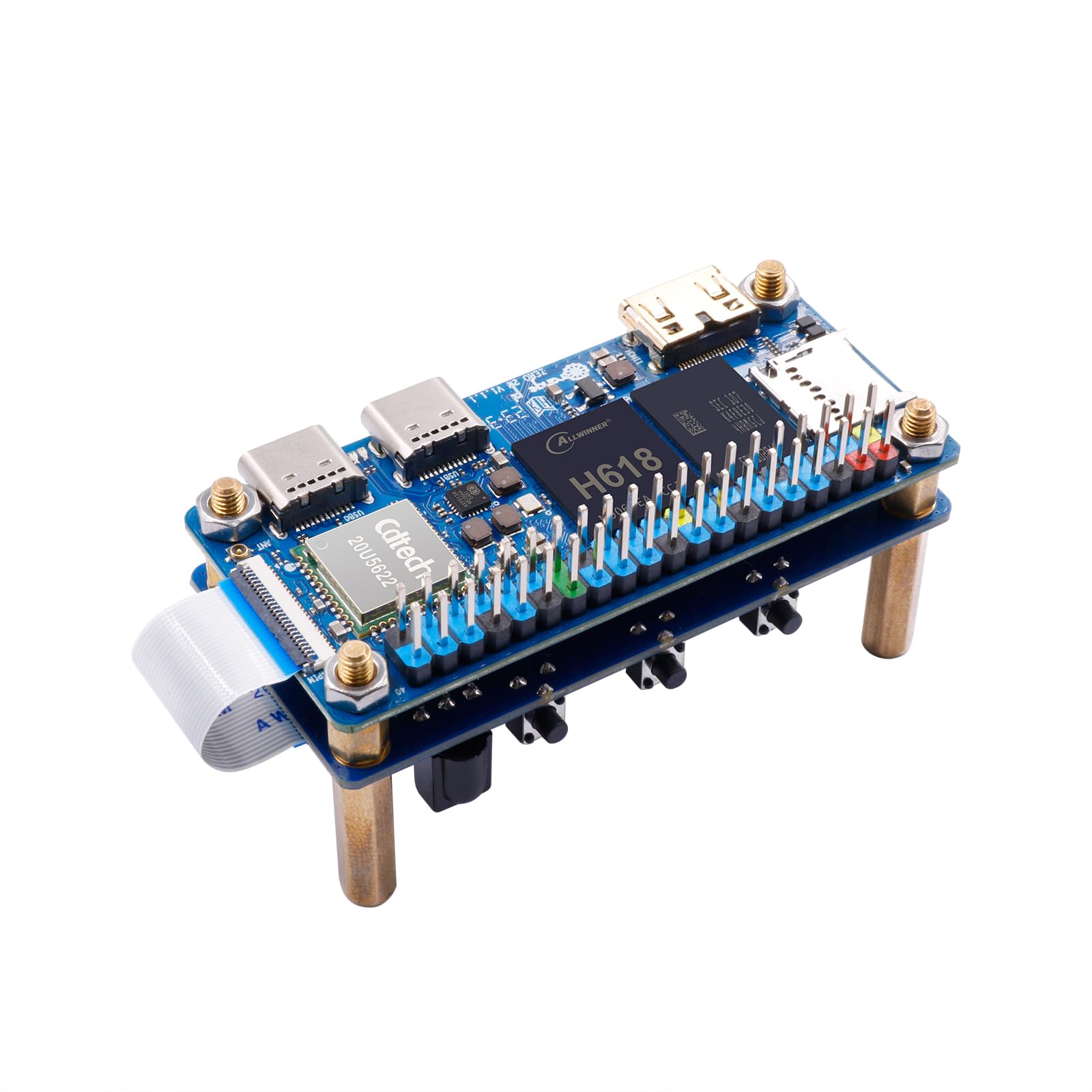

Using an Orange Pi Zero 2W for hosting your Klipper instance
Step for step guide
Installing the operating system
Download the OrangePi OS of your choice (i.e. Raspberry Pi OS ) and burn it to your SD card using your preffered tool (i.e. Raspberry Pi Imager). Note that Kiauth won’t work on a Arch-system. Insert the SD card into the board and start it up while connected to a monitor and peripherials. Connect to your wifi or plug in your ethernet cable. Enable ssh and change the hostname to your preference. Now the orangepi is ready for headless operation and can be acessed through SSH.
Installing Klipper
Log into your Orange Pi using your client of choice (i.e. PuTTY). Using the Kiauh tool you can easely install klipper and the necessarry components. Install and start Kiauh with the following commands:
sudo apt-get update && sudo apt-get install git -ycd ~ && git clone https://github.com/dw-0/kiauh.git./kiauh/kiauh.shPreparation for running input shaper
Input Shaping
sudo apt install libopenblas-base
sudo apt install python3-numpy python3-matplotlib libatlas-base-dev libopenblas-dev~/klippy-env/bin/pip install -v numpy~/klippy-env/bin/pip install -v numpy==1.25.2
Leave a Reply